 SongCollect
Status: Design spec for the first service-plan slice (issue #12). Not implemented. Recorded on 19 October 2026.
This page specifies the screens for creating a service plan, filling it with songs, passages, announcements and headings, putting it in order and marking items as prepared. It follows the style guide and the three-pane direction in the target UI, and the data rules of Decision 001. It covers parts of SC-09, SC-12, SC-16 to SC-19, SC-46, SC-51, SC-56 and SC-58 from the requirements.
The mockups are static HTML using the application tokens: all frames. Open a single frame with ?f=list, create, editor, picker, sequence, reorder, prepared, conflict, states or mobile. Select an image to open its frame at full size. The square ink markers (1, 2 …) in each image are annotations, not part of the interface. Each section below refers to them by number.
Build on what exists. Everything here reuses the tokens and components in the style guide unless it is listed under New components.
Navigation and routes🔗
| Route | Screen | Who |
|---|---|---|
/services | Services list, Upcoming tab | Members |
/services?view=past | Services list, Past tab | Members |
/services/{serviceId} | Service editor; read-only for Viewers | Members |
/services/{serviceId}?item={itemId} | Editor with that item selected | Members |
The church comes from the session, as it does for songs. The selected item is in the URL so a link can point a technician at one item. Service plans never appear in the public catalogue and its header has no Services link (SC-26).
The header gains a section switch between the product name and the audience label: Songs and Services as text links with the tab style (3px bottom bar, --accent bar and --accent-text on the current one, aria-current="page"). It sits in a <nav aria-label="Sections">.
Services list🔗
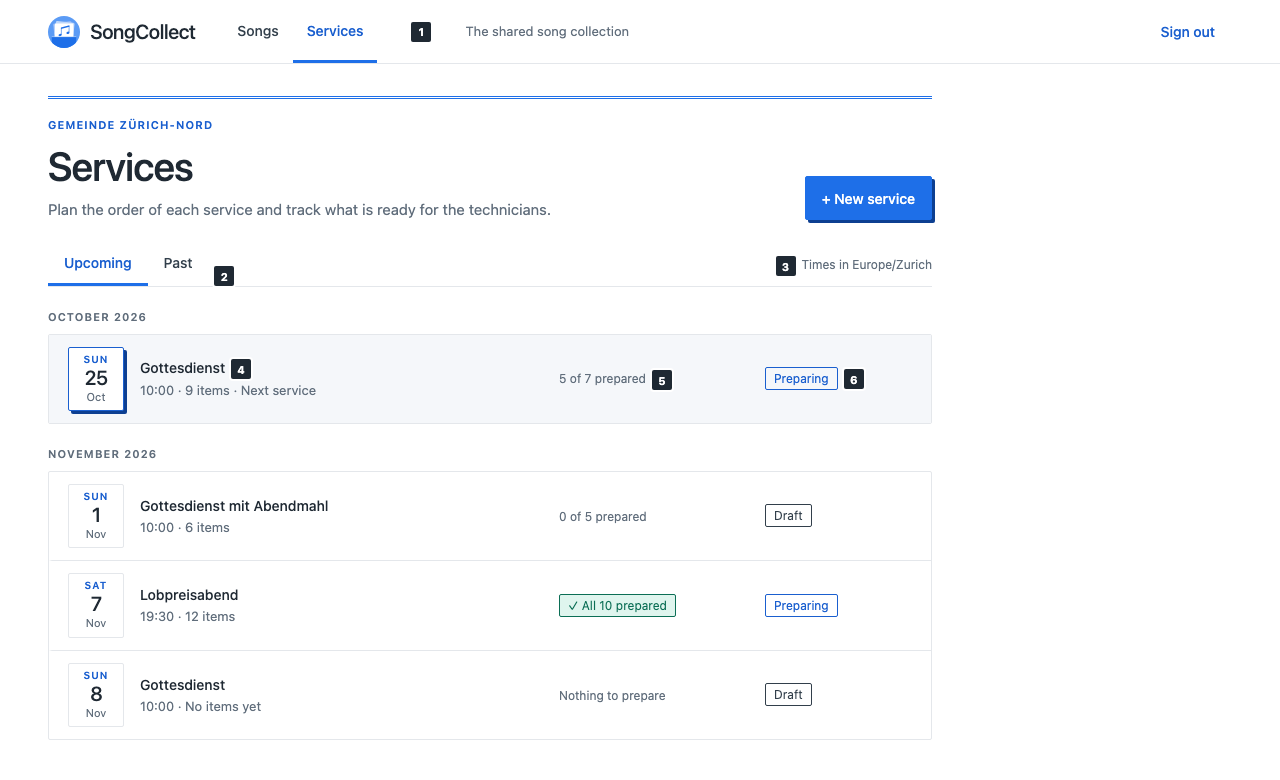
- Section switch in the header, described above.
- Upcoming | Past uses the existing tabs component. Upcoming lists services whose start date, in the church time zone, is today or later, oldest first. A service stays in Upcoming for the rest of its day. Past lists the others, newest first, 20 per page with the existing quiet pagination.
- Time zone note. The right end of the tab row reads
Times in Europe/Zurich, using the church's IANA zone. All dates and times on these screens use the church zone, never the browser's, formatted withIntl.DateTimeFormatin the browser's locale withtimeZoneset to the church zone. - Service row (new). It has a date tile, then the title in weight 500, and below it a muted line with the start time, the item count and
Next serviceon the first upcoming row. The next service's date tile has an--accent-textborder and the hard3px 3px 0 --accent-darklift; it is the only lifted element on the page apart from the primary button. Rows are grouped under month section labels (OCTOBER 2026). The whole row is one link to the editor. Hover fills--panel. - Preparation progress.
5 of 7 preparedas muted 12px text with a 4px meter below it (--linetrack,--successfill). When every preparable item is prepared, this becomes a green✓ All 10 preparedbadge. A service with no preparable items showsNothing to prepare. Headings never count. - Preparation state badge.
Draftis an ink-outlined badge.Preparingis the outlined blue badge. Ready and Archived are later states and are not designed here.
The page heading block has the double rule, the church name as eyebrow and a one-line description. Editors and Administrators get a + New service primary button. Viewers don't.
New service and service details🔗
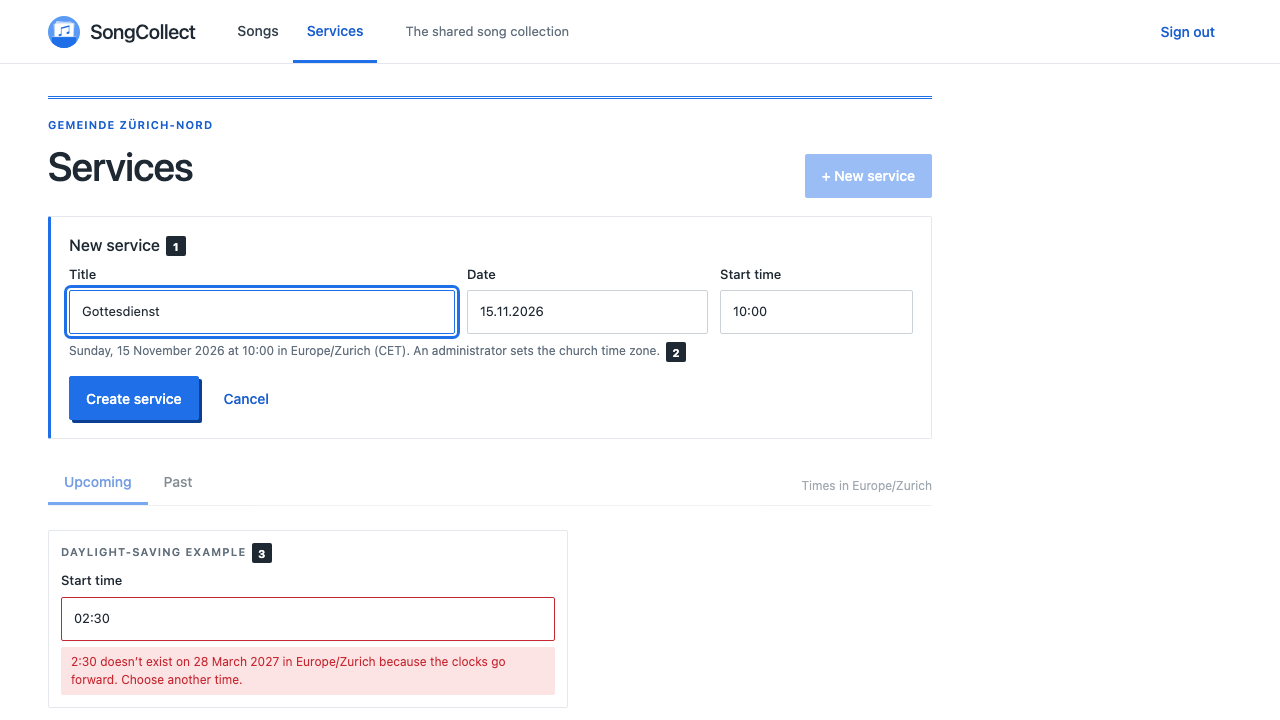
+ New serviceopens an inline form card above the tabs: a section card with the 3px--accentleft bar and fields for Title, Date and Start time. The primary button is disabled while the form is open. Defaults: the most recent service's title (empty for the first service), the next Sunday after the latest upcoming service, and the most recent start time or 10:00. Focus goes to Title with its text selected.Create servicecreates the service with an operation ID (SC-58) and opens the editor. Esc orCancelcloses the form and returns focus to+ New service.- Helper line under the fields restates the result in words:
Sunday, 15 November 2026 at 10:00 in Europe/Zurich (CET).It updates as the fields change so the day of the week and the zone are always visible. The zone is read-only here; administrators set it in church settings. Store the instant as UTC together with the zone (SC-46). - Daylight-saving edge cases. A wall time that doesn't exist (02:30 on the spring change) shows a field error:
2:30 doesn’t exist on 28 March 2027 in Europe/Zurich because the clocks go forward. Choose another time.An ambiguous time on the autumn change uses the earlier occurrence and the helper says02:30 occurs twice on 25 October; this uses the first (CEST).
Edit details in the editor heading opens the same fields, plus a Draft | Preparing choice as two 44px radio rows, in the editor's right pane. Saving the header is its own version-checked write, separate from the items and the order.
Service editor🔗
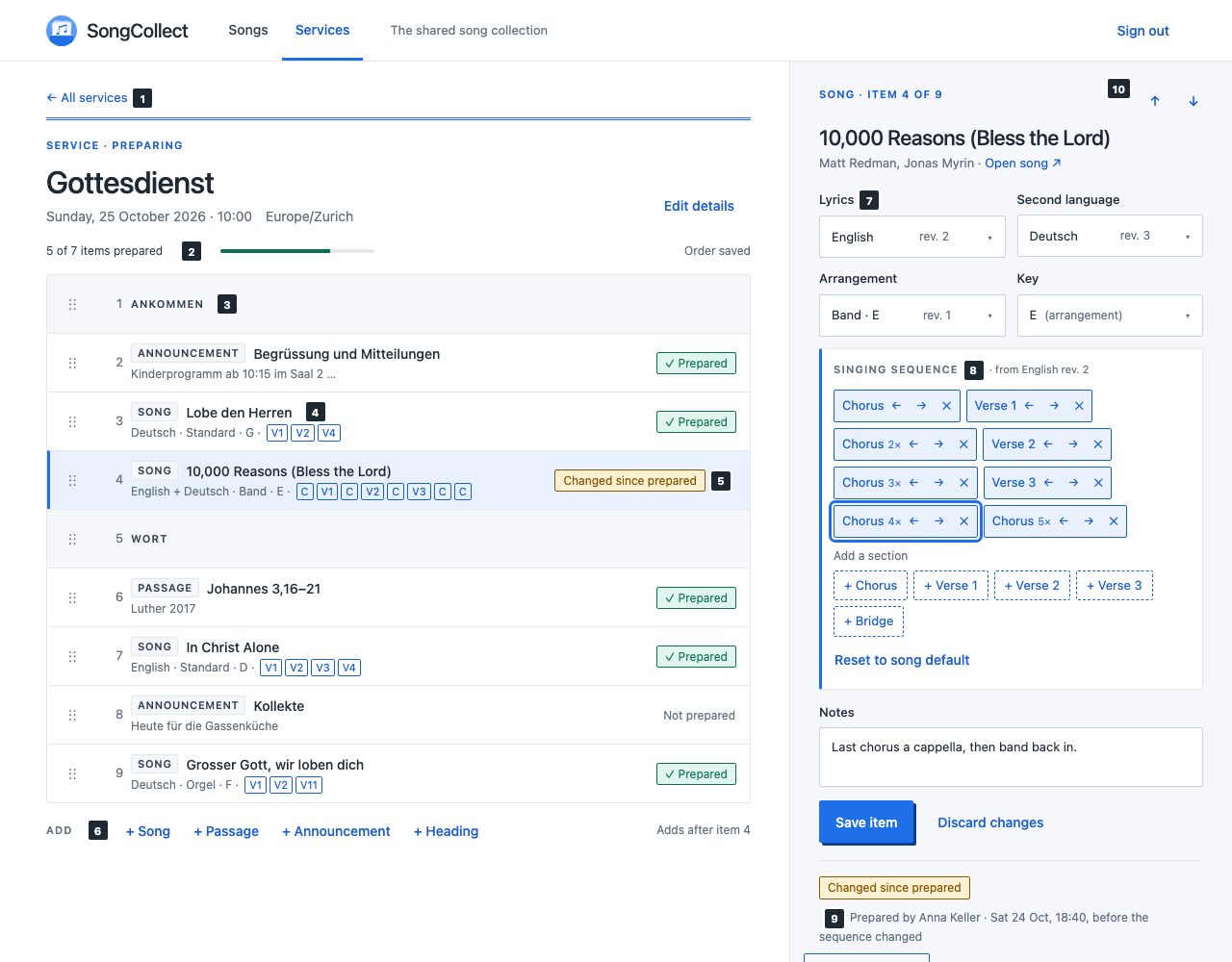
The editor uses the workspace split the song collection already has: the plan (flexible, --bg) on the left and the item pane (460px, --panel, 1px left border) on the right. Both scroll independently. This is the target UI's three-pane layout without the navigation pane, which doesn't exist yet.
-
Heading. A quiet
← All serviceslink, then the heading block with the double rule. The eyebrow isService · Preparing, the title is the service title as anh1at panel size, and a muted line gives the full local date and time and the zone.Edit detailsis a quiet button for editors. -
Summary line.
5 of 7 items preparedwith the 4px meter, and at the right the order save status:Saving order…, thenOrder saved(muted,role="status"). -
Heading item. A full-width row on
--panelwith the title in the 11px uppercase section-label style in--ink-soft. It groups the items below it visually. It has no preparation marker. -
Item row (new). From left to right: the move handle, the position number (muted, tabular figures), then a type label (
SONG,PASSAGE,ANNOUNCEMENT; 11px uppercase on--panelwith a 1px--lineborder; text, never an icon alone) and the title in weight 500. A muted second line summarises the body:- song: lyric language(s) · arrangement label · key · the singing sequence as mini badges (
V1,C,V2…, short labels derived from section names), so the order can be checked without opening the item; - passage: translation;
- announcement: the first line of the body.
Rows are at least 58px tall. The selected row has
--accent-softand the 3px--accentleft bar, like the selected song row. - song: lyric language(s) · arrangement label · key · the singing sequence as mini badges (
-
Preparation marker at the right of the row. See Preparation marker.
-
Add bar below the list: the section label
ADDand four quiet buttons,+ Song,+ Passage,+ Announcementand+ Heading, with a muted hint at the right:Adds after item 4, orAdds at the endwhen nothing is selected. New items go after the selected item, so a mid-list insert never needs a later move. -
Pin selectors. See Pins.
-
Singing sequence. See Singing sequence.
-
Preparation block at the bottom of the pane, with
Remove from service. See Preparation marker. -
Move up / Move down quiet
↑and↓buttons in the pane header, labelledMove upandMove downwith the item title. They are the simplest reordering path and match the section cards in the lyrics editor.
The item pane🔗
The pane header has the eyebrow Song · Item 4 of 9, the move buttons and the title as h2. For songs, a muted line lists the authors and an Open song ↗ link to the song in the collection, which opens in a new tab so the draft is kept.
Item forms per type, in this order. All use the existing inputs and 44px minimum height.
| Type | Fields |
|---|---|
| Song | Lyrics, Second language, Arrangement, Key, Singing sequence, Notes |
| Passage | Reference, Translation, Text (textarea, pasted paragraph breaks kept), Notes |
| Announcement | Title, Body (textarea), Notes |
| Heading | Title, Notes |
Below the fields sit Save item (the pane's one primary button) and the quiet Discard changes. Both are disabled until the draft differs from the saved item. Remove from service is a quiet danger button at the far right of the preparation block. It asks for confirmation in a warning bar (Remove “Kollekte” from this service? with Remove and Keep), as removing a sheet-music file does. Removing changes membership and order atomically.
Adding a song🔗
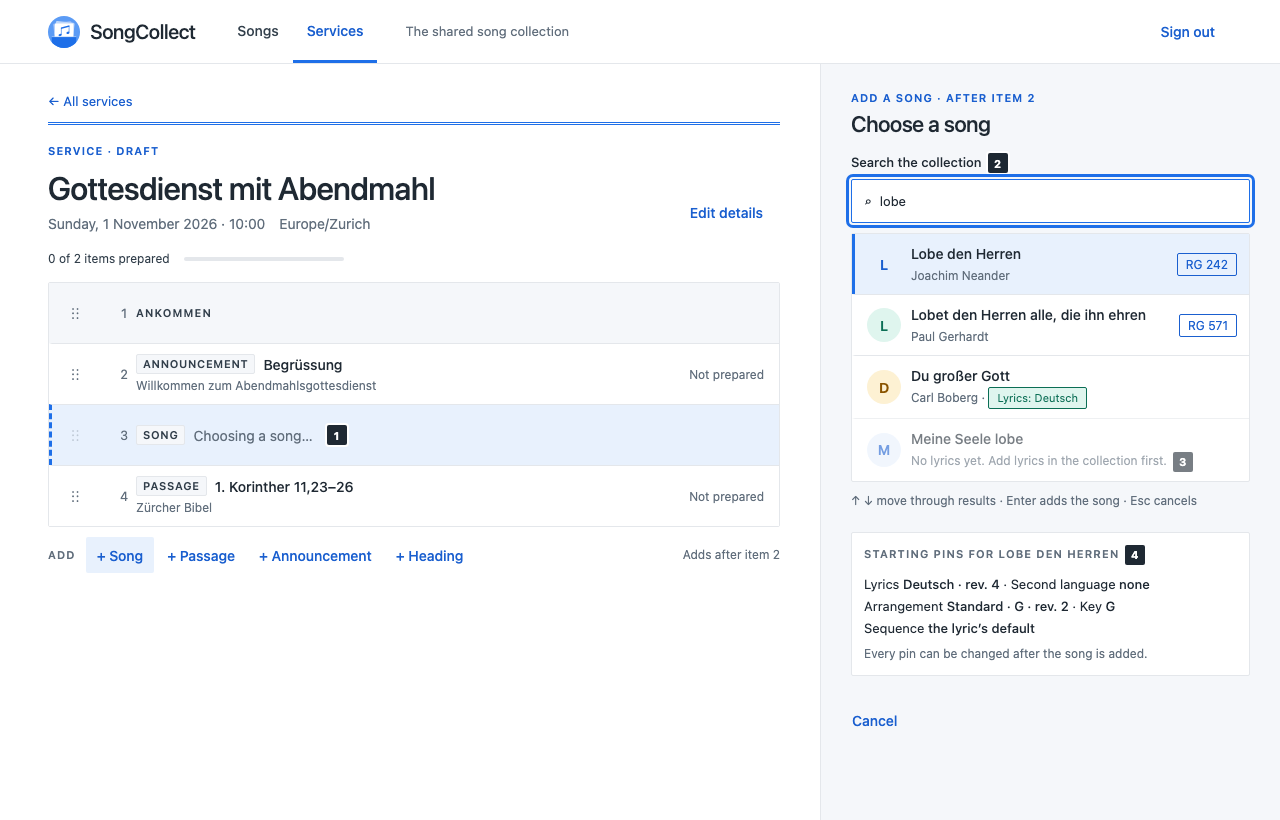
+ Songinserts a placeholder row after the selected item: dashed left bar,SONGlabel and mutedChoosing a song…. The placeholder exists only in the browser; nothing is written yet.- The pane shows Choose a song with a search input labelled
Search the collection, focused, using the existing search endpoint and its 150ms debounce. Results reuse the song row: avatar, title, authors, songbook badges, and the greenLyrics: Deutschbadge for lyric matches. The input is a combobox (role="combobox",aria-controlson the resultlistbox,aria-activedescendanton the active option). ↑ and ↓ move the active result, Enter adds it, Esc cancels and returns focus to+ Song. A pointer click on a result also adds it. - A song without lyric versions can't be pinned. Its row is shown at 60% opacity with
No lyrics yet. Add lyrics in the collection first.andaria-disabled="true". - Starting pins. A card below the results shows what the active result will pin: the first lyric version at its current revision, no second language, the first arrangement associated with that lyric version (or none), the arrangement's key, and the lyric version's default sequence. Choosing the song creates the item with these pins in one version-checked insert. The pane then shows the normal song form with focus on its
h2, and every pin can be changed.
+ Passage, + Announcement and + Heading create nothing until the first save: they insert the same placeholder row and open the empty form with focus on the first field. Discard changes on an unsaved new item removes the placeholder.
Song pins🔗
Each pin is a native <select> styled as an input, so keyboard and screen-reader behaviour comes from the browser.
- Lyrics lists the song's lyric versions as
English,Deutsch · Originaland so on. The pinned revision appears as a mutedrev. 2at the right of the closed control and in each option's text. Pinning always takes the revision current at the moment of choice. The revision is then fixed: later song edits don't change it (SC-47). Showing and accepting newer revisions is SC-20 and not part of this slice. - Second language has
Nonefirst, then the other lyric versions. It can't equal the primary. - Arrangement has
Nonefirst, then the arrangements asStandard · D, with arrangements associated with the chosen lyric version listed first. - Key offers the 12 major and 12 minor keys, using the spellings the arrangement editor uses. The arrangement's own key is marked
(arrangement)and is the default. With no arrangement, the default is the previous key, or no key.
The server rejects pins from another song or church. The UI can only offer valid choices, so a rejection means the song changed underneath and is handled like a stale save.
Singing sequence🔗
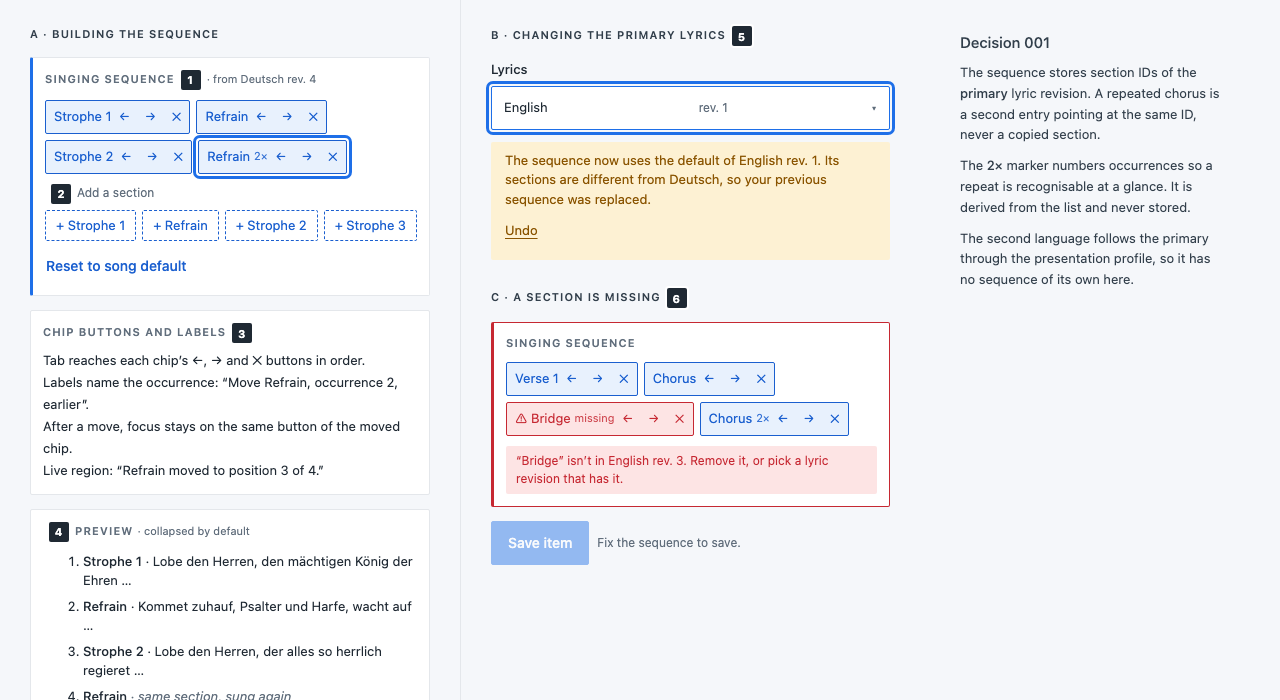
The sequence editor reuses the chip builder from the lyrics editor, inside a section card with the 3px --accent left bar. Its label reads Singing sequence · from English rev. 2 so it is clear whose sections it uses.
- Chips. Each entry is an outlined blue chip with the section name and quiet
←,→and✕buttons. A repeated section is another chip for the same section ID: an occurrence, not a copy (Decision 001). From the second occurrence on, the chip shows a small2×,3×and so on. The number is derived from the list and never stored. - Add a section. One dashed outline button per section of the pinned primary lyric (
+ Verse 1,+ Chorus…) appends an occurrence. This replaces the lyrics editor's select-and-add pair because a worship leader adds many entries in a row.Reset to song defaultrestores the lyric's default sequence. - Labels and focus. Tab reaches each chip's buttons in order. Labels name the occurrence:
Move Chorus, occurrence 2, earlier,Remove Chorus, occurrence 2. After a move, focus stays on the same button of the moved chip. A polite live region announcesChorus moved to position 3 of 8.The first chip's←and the last chip's→are disabled. - Preview, collapsed by default (
<details>), lists the sequence with the first line of each section. A repeat showssame section, sung againinstead of the text again, which makes the occurrence model visible. - Changing the primary lyrics. Section IDs belong to one lyric version, so choosing another primary replaces the sequence with that version's default. A warning bar says so and offers
Undo, which restores the previous lyric choice and sequence in the draft. Changing only the revision keeps every entry whose section ID still exists. - Missing section. An entry whose section no longer exists in the pinned revision shows as a danger chip,
⚠ Bridge missing, the card gets a danger border, and a field error linked witharia-describedbysays“Bridge” isn’t in English rev. 3. Remove it, or pick a lyric revision that has it.Save itemis disabled with the helperFix the sequence to save.The server rejects such a sequence too.
An empty sequence is valid and means each section once in order, as on the song itself. The second language has no sequence of its own: it follows the primary through its section mapping.
Reordering🔗
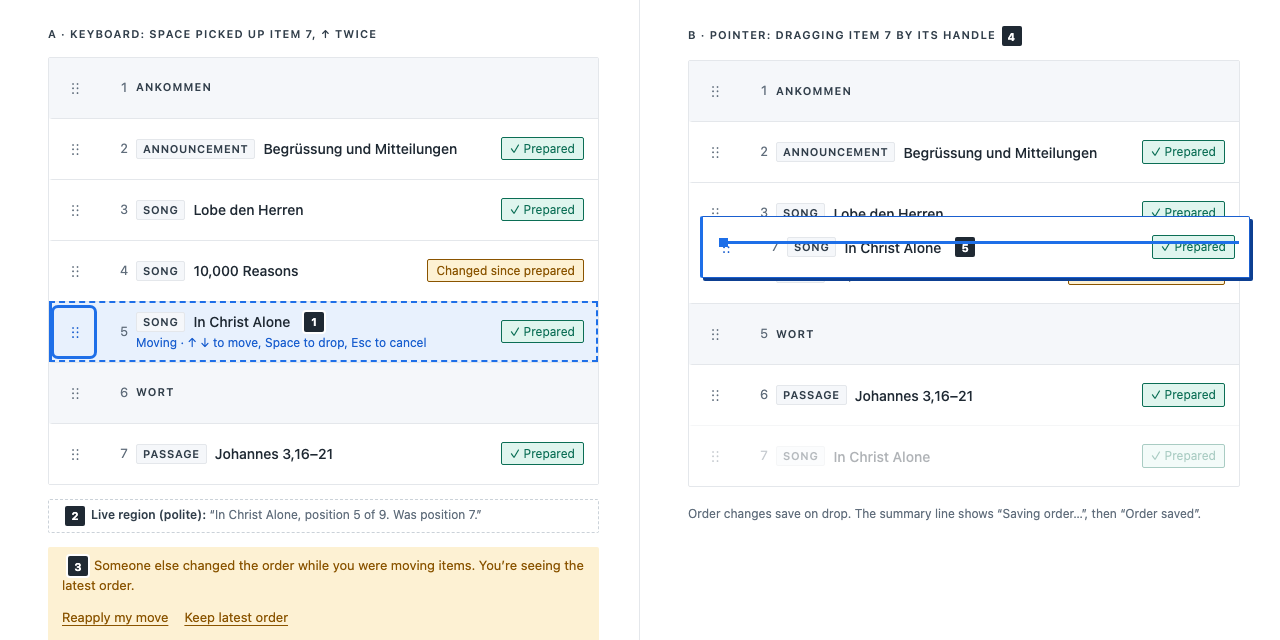
There are three ways to reorder, and all of them save the same way:
- Pane buttons:
↑and↓in the item pane (editor marker 10). - Keyboard move on the handle (marker 1 here). The handle is a 36×44px button labelled
Move In Christ Alone, position 7 of 9. Space or Enter picks the item up. The row then gets a dashed--accentoutline and the hintMoving · ↑ ↓ to move, Space to drop, Esc to cancelreplaces its second line. ↑ and ↓ move one place, Home and End move to the top and bottom, Space or Enter drops, Esc puts the item back where it was. Focus stays on the handle. - Pointer drag on the same handle (markers 4 and 5). The dragged row lifts with the hard offset shadow, its original slot dims to 35%, and a 3px
--accentinsertion line with a square end marks the drop position. Drag starts after 4px of movement so a click still works for keyboard pick-up. The list auto-scrolls near its edges. Use pointer events, not the HTML drag-and-drop API, so touch and pen behave like the mouse.
2 · Announcements. A polite live region reports each step: In Christ Alone, position 5 of 9. Was position 7., then on drop In Christ Alone moved to position 5. or on cancel Move cancelled.
Each drop or button move sends one reorder write with the full ordered item list, the order version and an operation ID. The new order is shown immediately and the summary line says Saving order…. On failure the list returns to the saved order.
3 · Stale order. If another editor changed the order first (HTTP 412), the list shows the latest order and a warning bar: Someone else changed the order while you were moving items. You’re seeing the latest order. Reapply my move repeats the user's last move (the same item, placed after the same neighbour) as a fresh version-checked write. It is hidden if that item or neighbour no longer exists. Keep latest order closes the bar. There is never a blind overwrite.
Reordering doesn't touch item bodies or their preparation markers.
Preparation marker🔗
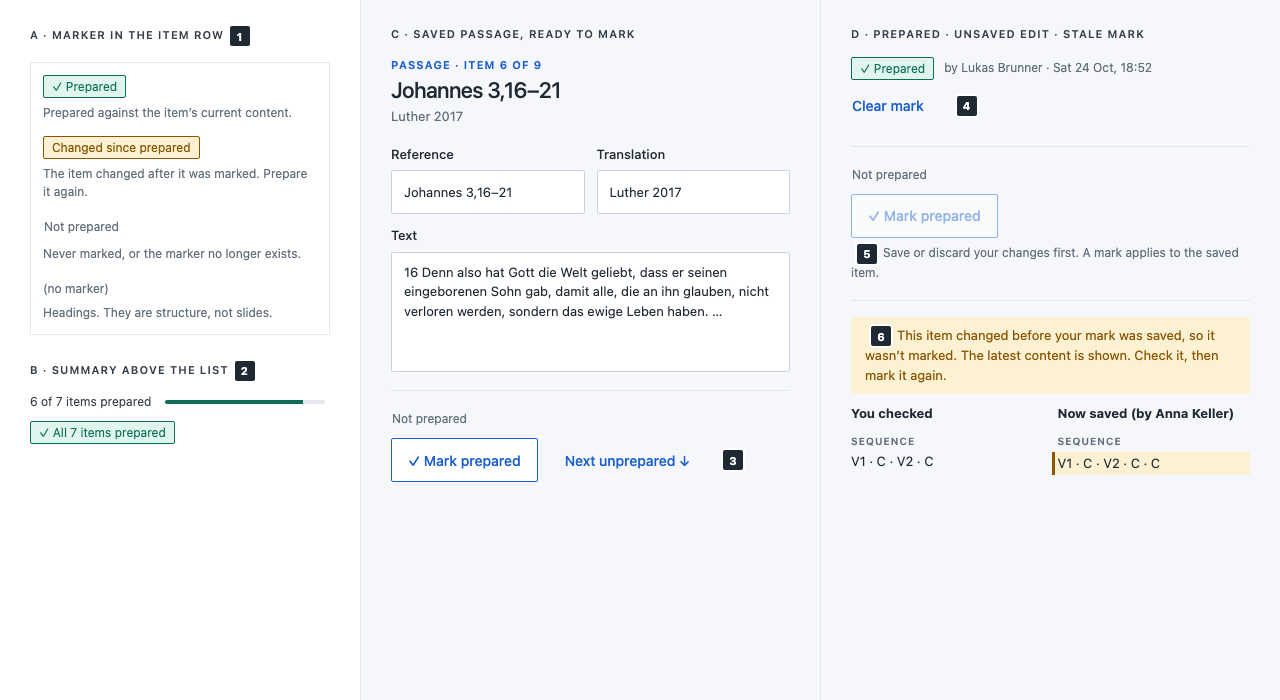
A marker records that a technician prepared the item's saved content, identified by its content digest (SC-19, SC-51).
-
In the row:
State Display Meaning Prepared Green badge ✓ PreparedMarked against the current digest Changed since prepared Amber badge Changed since preparedA marker exists but its digest is no longer current Not prepared Muted text Not prepared, no fillNever marked, or the marker was removed Heading nothing Headings are structure, not slides The badge text carries the state on its own; colour only reinforces it.
-
Summary. The editor and the list show
6 of 7 items preparedwith the meter, or✓ All 7 items prepared. OnlyPreparedcounts. -
Marking. The preparation block shows the state, then
✓ Mark preparedas an outlined button (new: transparent, 1px--accent-textborder,--accent-textlabel, no shadow, 44px) so it doesn't compete withSave item. The quietNext unprepared ↓selects the next item below that isn't prepared, wrapping to the top, so a technician can work down the plan. A successful mark shows the success bar“In Christ Alone” marked prepared. -
Prepared shows
by Lukas Brunner · Sat 24 Oct, 18:52and a quietClear mark. -
Unsaved edits. While the item has unsaved changes,
Mark preparedis disabled and the helper saysSave or discard your changes first. A mark applies to the saved item.Saving a material change clears the marker on the server; the row then showsChanged since prepared. -
Stale mark. If the item changed after the technician loaded it, the server answers with a stale-version response. Nothing is marked. A warning bar says
This item changed before your mark was saved, so it wasn’t marked. The latest content is shown. Check it, then mark it again.and a two-column compare (You checkedandNow saved (by Anna Keller)) highlights the changed fields. The pane reloads the latest item; there is no draft to keep.
Saving, stale saves and conflicts🔗
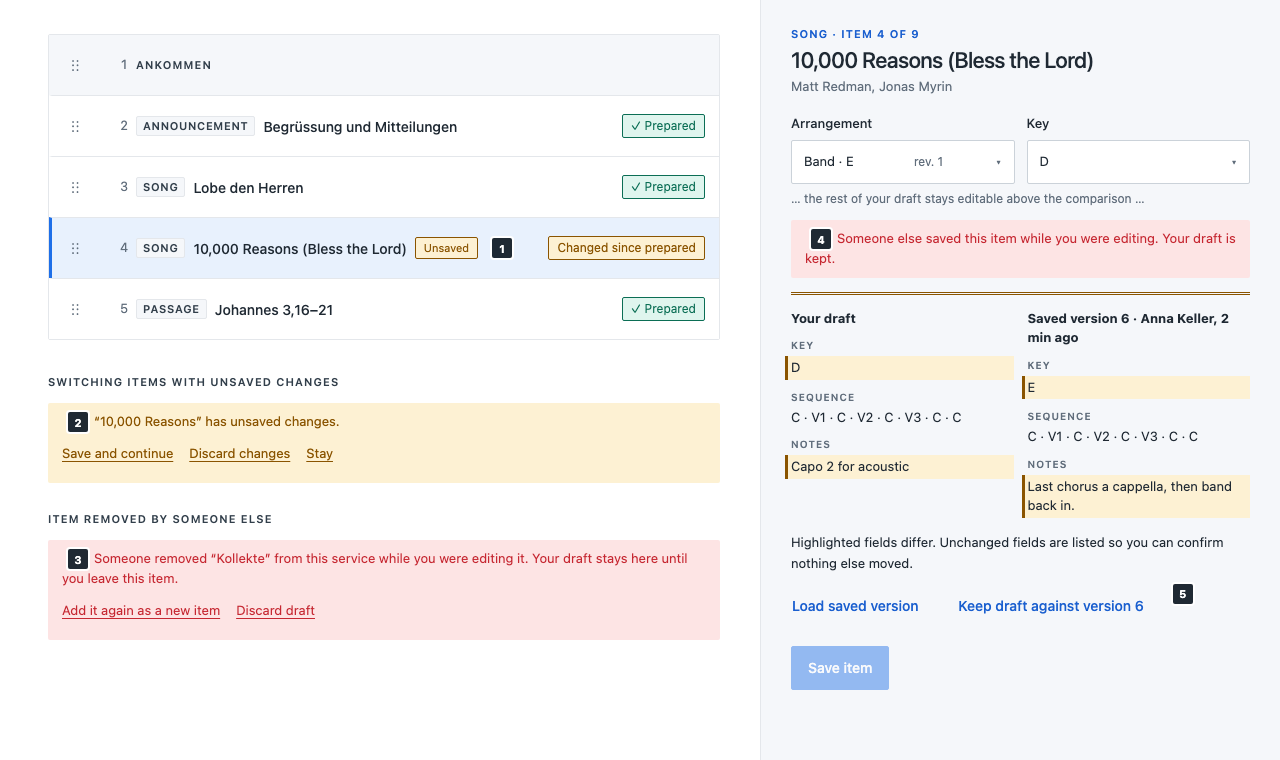
Header, order and each item are separate editing boundaries (Decision 001), so two people editing different items never conflict. Every write sends If-Match with the boundary's version and an operation ID; a retry after a network failure reuses the same operation ID.
- Unsaved marker. An item with a dirty draft shows an amber
Unsavedbadge after its title in the row. Leaving the page with any dirty draft triggers the browser'sbeforeunloadprompt, as the song editor does. - Switching items with unsaved changes keeps the current item selected and shows a warning bar in the plan:
“10,000 Reasons” has unsaved changes.withSave and continue,Discard changesandStay. Focus moves to the bar. - Item removed by someone else (404 on save): a danger bar keeps the draft visible until the user leaves the item and offers
Add it again as a new item(a fresh insert at the item's old position, or at the end) andDiscard draft. - Stale item save (HTTP 412): a danger bar,
Someone else saved this item while you were editing. Your draft is kept., then the conflict section from the song editor: the warning double rule and a two-column compare,Your draftagainstSaved version 6 · Anna Keller, 2 min ago. Fields that differ get a--warning-softfill with a 3px--warningbar. Unchanged fields are still listed. - Its actions copy the song editor exactly:
Load saved versionreplaces the draft, andKeep draft against version 6rebases the draft so the next save is a fresh version-checked write.Save itemstays disabled until one is chosen. The header's stale save works the same way, in the pane.
Saved notices use the success bar with role="status", one at a time. Errors that aren't conflicts (validation, network) use the danger bar with role="alert" and keep the draft.
Empty, loading, error and read-only states🔗
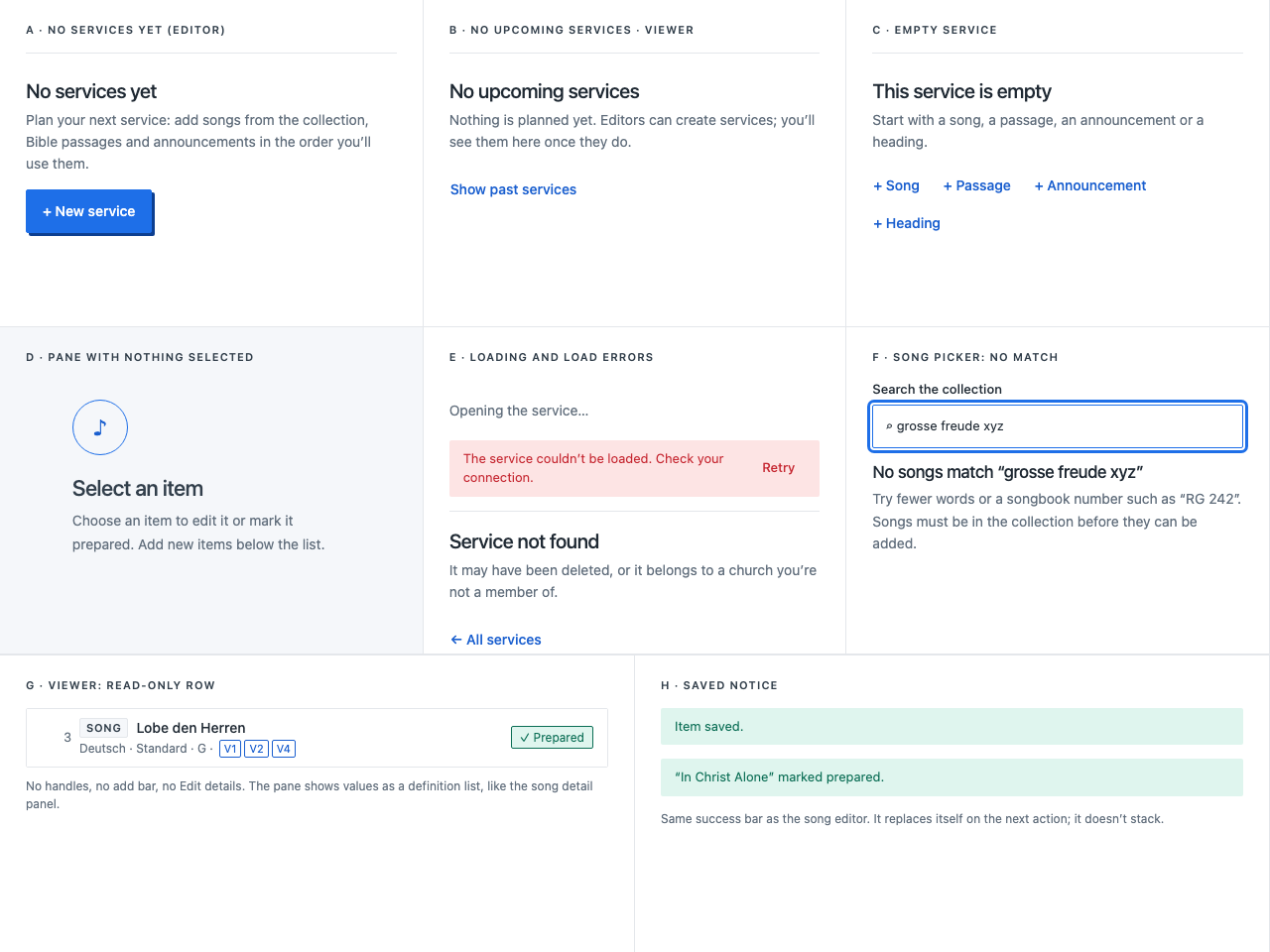
| Frame | State | Content |
|---|---|---|
| A | No services, editor | No services yet, one sentence and + New service |
| B | No upcoming services, viewer | No upcoming services, and a quiet Show past services when past services exist |
| C | Empty service | This service is empty and the four add buttons inline |
| D | Nothing selected | The detail placeholder: circle glyph, Select an item, one sentence |
| E | Loading | Muted Opening the service… with role="status", as Opening your collection… today. No skeletons |
| E | Load failure | Danger bar with a quiet Retry |
| E | Not found or no access | Service not found with ← All services. The two cases are not told apart, so service existence doesn't leak |
| F | Picker without results | No songs match “…” with a hint about songbook numbers |
| G | Viewer | No handles, add bar, Edit details or pin controls. The pane shows values as a definition list, like the song detail panel, with the preparation state as text |
| H | Saved notices | The existing success bar |
Responsive behaviour and mobile🔗
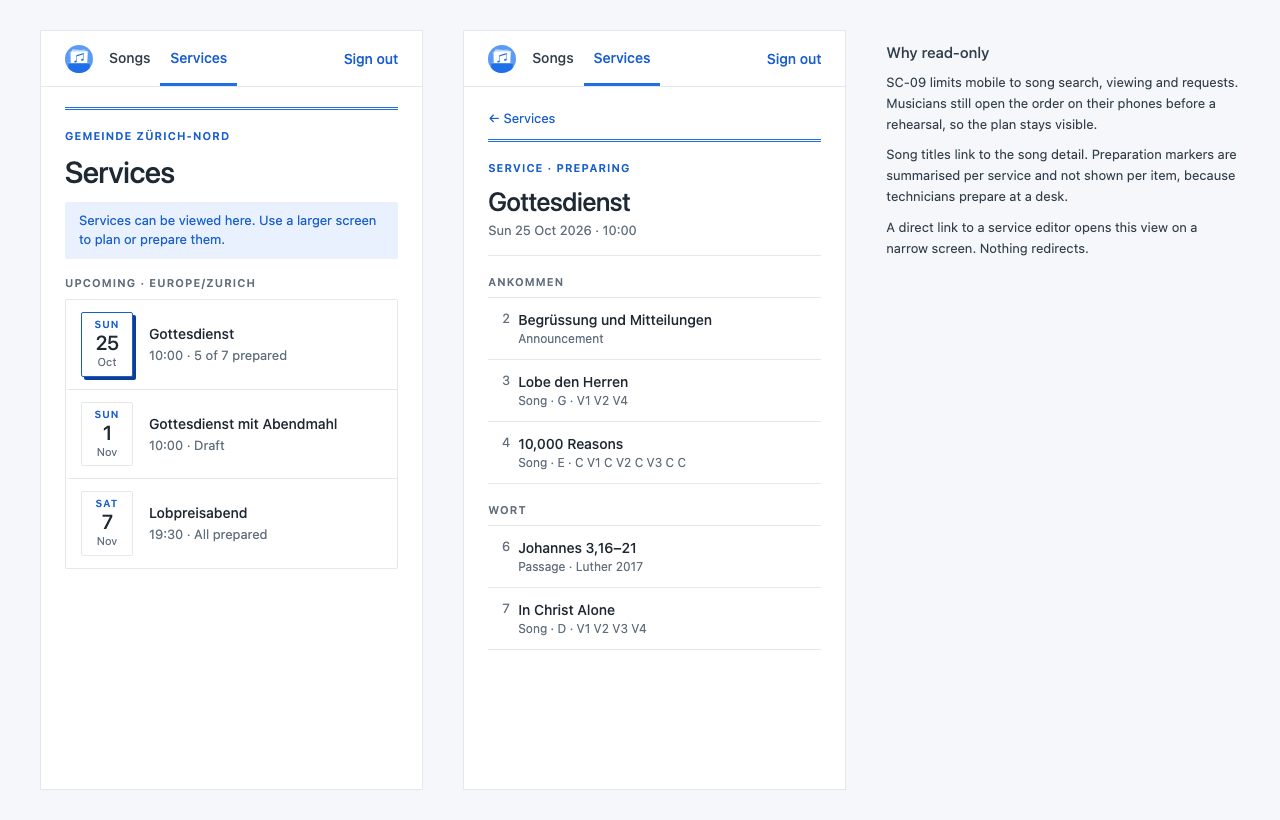
| Width | Behaviour |
|---|---|
| 1100px and wider | Plan and pane side by side, as above |
| 760 to 1099px | Full editing. The pane becomes a slide-over from the right, 460px or the full width if narrower, opened by selecting an item and closed with Esc or a Close quiet button. Focus moves into it on open and back to the row on close |
| Below 760px | Read-only (SC-09) |
On mobile:
- A blue info bar (
--accent-softwith--accent-text) explainsServices can be viewed here. Use a larger screen to plan or prepare them. - The list shows Upcoming only, with the date tile, title, time and the progress as text.
- A service shows a plain run sheet: headings as section labels, then each item as position, title and one muted line (
Song · E · C V1 C V2 C V3 C C). Song titles link to the song detail. There are no per-item preparation markers. - An editor link opened on a narrow screen shows this view. There is no redirect.
- The header hides the product name visually (it stays the logo's accessible name) so the logo, the section switch and
Sign outfit on one row.
Accessibility🔗
Focus order in the editor🔗
- Header: logo, section switch, Sign out
← All services,Edit details- Item list, row by row: the row's select button, then its move handle
- Add bar buttons
- Pane:
Move up,Move down,Open song ↗, the fields in visual order, the sequence chips and their buttons,+ sectionbuttons,Reset to song default, Notes,Save item,Discard changes,Mark prepared,Next unprepared,Remove from service - Message bars, when present, come first in the pane or plan where they appear and take focus when they ask for a decision
Focus rules: after adding a song, focus goes to the item's h2 (tabindex="-1"). After removing an item, it goes to the next row, or the previous one, or the add bar if the plan is empty. After a move, it stays on the control that moved the item. Closing the picker or the create form returns focus to the button that opened it.
Semantics🔗
- The plan is an
<ol>with an accessible name (Service order). Each row has one button that selects the item, witharia-current="true"on the selected one, and a separate handle button. Don't nest buttons. - Every type label, state badge and sequence entry is text, so the row is readable without colour.
- The order status, the move announcements and the sequence announcements share one polite live region per screen.
- Respect
prefers-reduced-motion: the lift and auto-scroll still work, but without the 150ms transitions.
Contrast🔗
All pairs come from existing tokens and meet WCAG AA:
| Text or mark | Background | Ratio |
|---|---|---|
--success (Prepared badge) | --success-soft | 5.5:1 |
--warning (Changed since prepared, Unsaved, warning bars) | --warning-soft | 5.6:1 |
--danger (missing section, errors) | --danger-soft | 4.6:1 |
--accent-text (chips, info bar, links) | --accent-soft | 5.2:1 |
--muted (row second line, selected row) | --accent-soft | 4.6:1 |
--muted (Not prepared, helpers) | --panel | 4.9:1 |
--ink-soft (type labels, headings rows) | --panel | 10.0:1 |
--accent focus ring and insertion line (non-text, 3:1 needed) | --bg / --accent-soft | 4.7:1 / 4.1:1 |
--success meter fill (non-text) | --line track | 5.0:1 |
New components🔗
| Component | Built from | Notes |
|---|---|---|
| Section switch | Tabs style | Header navigation, aria-current="page" |
| Date tile | Badge border and section-label type | 56px wide; weekday, day, month. Lifted only for the next service |
| Service row | Song row | Date tile instead of the avatar |
| Item row and heading row | Song row, section label | Handle, position, type label, title, summary, marker |
| Move handle with keyboard move | Quiet button | Pick up, move, drop, cancel; drag via pointer events |
| Insertion line | --accent | 3px line with a 9px square end |
| Preparation badge and meter | Badges, target-UI progress bar | Three states plus none |
| Outlined button | Quiet button | Only for Mark prepared |
| Add bar | Quiet buttons | Inserts after the selection |
| Section quick-add buttons | Chip colours, dashed border | Appends a sequence occurrence |
| Info message | Message bar | --accent-soft with --accent-text, for the mobile notice |
| Run sheet (mobile) | Lyrics section labels | Read-only order |
Reused unchanged: header, page heading block, primary and quiet buttons, inputs and selects, tabs, badges, success, warning and danger bars, sequence chips, the conflict compare, the detail placeholder, the empty state, the status line and quiet pagination.
What the UI needs from the API🔗
This spec assumes the following from the #12 API. Builder may shape the DTOs differently as long as the information is there.
- The church's IANA time zone on the service, or on the church record the app already loads.
- Per service in the list: item count, preparable item count and prepared item count, so the list doesn't load every item.
- Per item:
version, the current content digest and the marker as{ digest, preparedBy, preparedAt }(or none). Keeping the last marker after a change, instead of deleting it, is what allowsChanged since prepared. If the API deletes it, the UI showsNot preparedand the amber state is unused. - For song items: the song title and authors, and the pinned lyric versions and arrangement with their labels and revision numbers, and the primary lyric revision's sections (ID and name), all in the item response. The editor shouldn't need one request per song.
- On 412, the current record and the name of the last editor, for the compare header.
Out of scope🔗
Ready for Sunday and its lock, revision-update acceptance (SC-20), sermon PDFs, images and videos, presentation profiles and slide previews, requests, exports, ChurchTools sync and live updates from other users. When these arrive, extend this page rather than adding a second services spec.